YouTube Thumbnail Download iPhone: 2026 Mobile Workflow
YouTube thumbnail download iPhone workflow for creators: copy the share link, save the best variant, choose PNG/JPG, and avoid app-store detours.
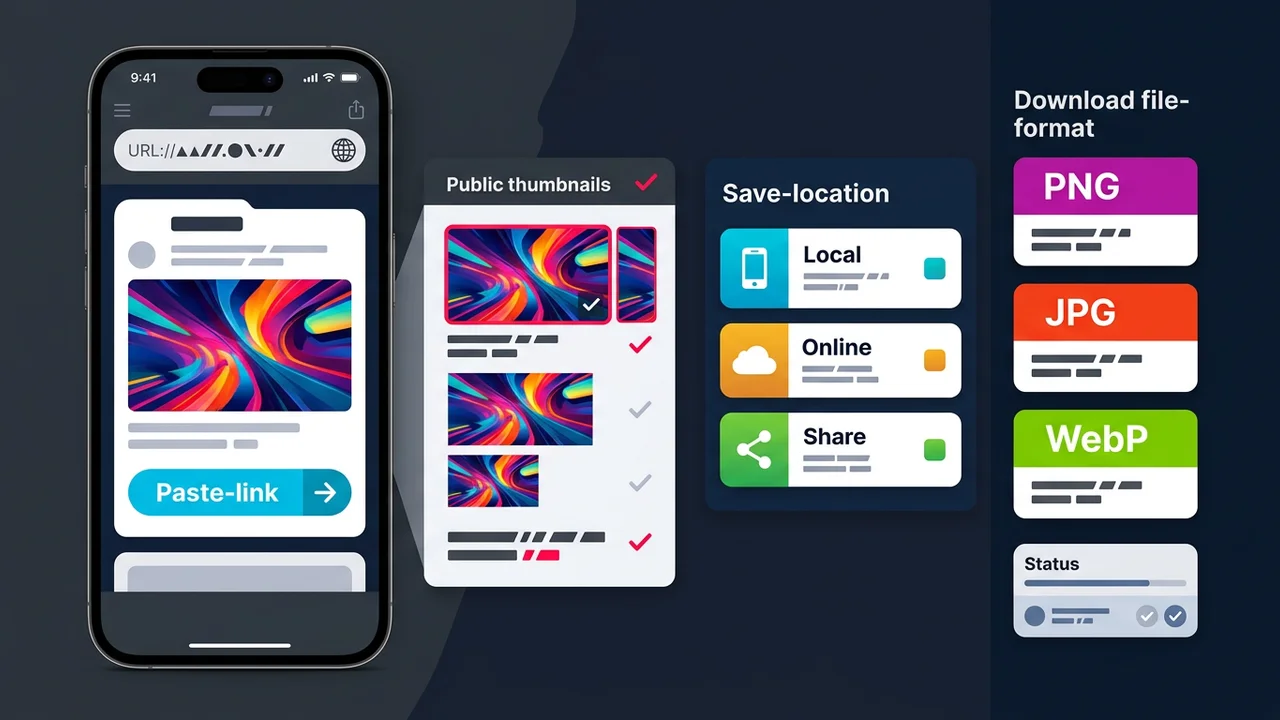
Direct answer
For YouTube thumbnail download iPhone workflows, copy the video link from the YouTube app, open YThumbPro in Safari or Chrome, paste the URL, load the public thumbnail variants, and save the best file to Photos, Files, or your design app. Use PNG when you plan to edit, JPG when you need broad sharing, and keep the source URL beside the saved thumbnail.
Key takeaways
- Use the YouTube app share link; do not manually rebuild mobile URLs on iPhone.
- Save the largest public thumbnail variant that actually loads before converting formats.
- Use PNG for editing, JPG for fast sharing, and WebP for compact web previews.
- Keep the video URL, saved format, dimensions, and date with any mobile thumbnail archive.
Published: 2026-06-05 Last updated: 2026-07-07 Author: jackyi Reviewed by: YThumbPro editorial review
AI-assisted writing disclosure: this article was drafted with AI assistance and reviewed for accuracy, originality, and YThumbPro product fit by the YThumbPro editorial team.
youtube thumbnail download iPhone searches usually come from a creator who has the YouTube app open and needs the image saved now. This refreshed guide keeps the canonical mobile article but makes the iPhone workflow clearer: copy the share link, use a browser, save the best real thumbnail variant, choose the right file format, and keep enough source notes for future edits or audits.
2026 refresh note: this update focuses on iPhone intent inside the shared iPhone and Android canonical article. The workflow now separates Photos, Files, PNG handoff, JPG sharing, and Shorts link checks so mobile users do not land on a thin duplicate page.
For YouTube thumbnail download iPhone workflows, copy the video link from the YouTube app, open YThumbPro in Safari or Chrome, paste the URL, load the public thumbnail variants, and save the best file to Photos, Files, or your design app. Use PNG when you plan to edit, JPG when you need broad sharing, and keep the source URL beside the saved thumbnail.
YouTube Thumbnail Download iPhone Workflow
A youtube thumbnail download iPhone workflow starts with the share sheet, not a desktop URL. The YouTube app already gives you the cleanest input, so copy the share link and paste it into YThumbPro or the mobile thumbnail downloader.
Use this iPhone sequence:
- Open the target video or Short in the YouTube app.
- Tap Share and copy the link.
- Open YThumbPro in Safari or Chrome.
- Paste the link and load available thumbnail variants.
- Save the largest real image that loads to Photos, Files, or a design app.
This avoids app-store detours and reduces URL mistakes. It also works better for Shorts links because you are using the exact URL YouTube provides.
If you are building a repeatable team workflow, bookmark the iPhone thumbnail downloader for device-specific instructions and the Android thumbnail downloader for the companion mobile path. Keeping both device pages connected to this canonical guide helps searchers pick the workflow that matches the phone in their hand.
YouTube Thumbnail Download Mobile Format Choices
youtube thumbnail download mobile workflows often fail at the format decision. The best file type depends on what happens after the download.
| iPhone goal | Best save location | Recommended format | Why it works |
|---|---|---|---|
| Quick reference | Photos or Downloads | JPG | Smaller and easy to share |
| Creator edit | Files or design app | PNG | Better for annotation and repeated edits |
| Web preview | Files | WebP | Compact for modern pages and internal previews |
| Thumbnail audit | Files with notes | Original plus PNG | Keeps source traceability and edit flexibility |
If you plan to crop, mark up, or compare thumbnails, save an original copy first. Then use PNG thumbnail download or the YouTube thumbnail to PNG guide when an editable copy is useful.
Save YouTube Thumbnail to Photos or Files
save youtube thumbnail intent is not always about the same destination. Photos is convenient for quick sharing, but Files is cleaner for creator projects because you can name folders by channel, video ID, or client.
For project work, I recommend this folder pattern:
- Channel or client name
- Video title or video ID
- Source URL
- Saved date
- Format and dimensions
- Intended use: edit, reference, audit, or competitor research
That structure matters when a designer asks where the PNG came from, or when a creator wants to compare the saved thumbnail with later CTR performance.
iPhone Share Links, Shorts, and Browser Caveats
The iPhone workflow is simple, but a few edge cases are worth checking. If a thumbnail does not load, confirm that the video is public and that the copied link contains a valid video or Shorts URL. Private, deleted, restricted, or still-processing videos may not expose every thumbnail variant.
Safari and Chrome can also present download choices differently. If an image opens in a new tab, long-press to save it or use the share sheet to send it to Files. If you need a working copy for design, save to Files first, then import into your editor.
When the thumbnail matters for a publishing decision, run it through the YouTube Thumbnail Analyzer. Mobile readability is one of the easiest things to miss when reviewing a thumbnail on a large desktop screen.
Responsible Mobile Thumbnail Use
Use this workflow for your own channel assets, client approvals, editorial notes, and internal research. If you save competitor thumbnails, treat them as references for analysis, not reusable artwork.
YouTube documents thumbnail requirements in YouTube Help, Apple explains iPhone browser downloads in its iPhone guide, and Google explains image context in Search Central image SEO best practices.
Conclusion
A youtube thumbnail download iPhone workflow should be fast, but it should still preserve source context. Copy the app share link, load the public thumbnail variants, save the right format, and keep the original URL beside any image that supports creator work.
Ready to save from a phone? Start with the mobile thumbnail downloader, use the iPhone downloader, or compare export choices with JPG thumbnail download.
Frequently Asked Questions
Q: Can I download a YouTube thumbnail on iPhone without an app?
Yes. Copy the YouTube app share link, open YThumbPro in Safari or Chrome, paste the URL, and save the loaded thumbnail variant. You do not need a separate downloader app.
Q: Where does iPhone save YouTube thumbnails?
Depending on the browser and file type, the image can go to Photos, Files, Downloads, or directly into a design app. For creator archives, Files is usually easier to organize than Photos.
Q: Does youtube thumbnail download mobile work for Shorts links?
Yes, when the Shorts URL maps to a public video ID and YouTube exposes a thumbnail. Paste the Shorts share link rather than editing it by hand.
Q: Should I save a YouTube thumbnail as PNG or JPG on iPhone?
Use PNG when the thumbnail will be edited or annotated. Use JPG when you need a smaller file for messages, notes, decks, or quick sharing.
About the Author
jackyi is a YouTube growth and thumbnail optimization practitioner focused on practical creator workflows. YThumbPro articles are written with AI assistance, edited for originality, and reviewed against product behavior before publication.
Next action
Use this guide on a real YouTube thumbnail
Paste a video URL, download the available thumbnail sizes, then decide whether the image needs a deeper AI readiness review.
Step-by-step guide
- 1
Copy the YouTube share link
Open the YouTube app on iPhone, tap Share, and copy the video or Shorts link exactly as provided.
- 2
Open YThumbPro in a browser
Use Safari or Chrome, paste the copied URL into YThumbPro, and load the public thumbnail variants.
- 3
Choose the best available variant
Select the largest real thumbnail that loads instead of trusting labels that imply unavailable quality.
- 4
Save the thumbnail
Download to Photos, Files, Downloads, or a design app based on whether the file is for sharing, editing, or archiving.
- 5
Record source context
Keep the video URL, format, dimensions, saved date, and intended use with the file when it supports creator work.
Frequently asked questions
Can I download a YouTube thumbnail on iPhone without an app?
Yes. Copy the YouTube app share link, open YThumbPro in Safari or Chrome, paste the URL, and save the loaded thumbnail variant. You do not need a separate downloader app.
Where does iPhone save YouTube thumbnails?
Depending on the browser and file type, the image can go to Photos, Files, Downloads, or directly into a design app. For creator archives, Files is usually easier to organize than Photos.
Does youtube thumbnail download mobile work for Shorts links?
Yes, when the Shorts URL maps to a public video ID and YouTube exposes a thumbnail. Paste the Shorts share link rather than editing it by hand.
Should I save a YouTube thumbnail as PNG or JPG on iPhone?
Use PNG when the thumbnail will be edited or annotated. Use JPG when you need a smaller file for messages, notes, decks, or quick sharing.