The Complete Guide to YouTube Thumbnail Sizes and Specifications
Master the technical aspects of YouTube thumbnails with this comprehensive guide to sizes, formats, and specifications. Ensure your thumbnails look perfect on every device.
The Complete Guide to YouTube Thumbnail Sizes and Specifications
Creating stunning thumbnails means nothing if technical issues undermine their quality. Understanding YouTube's thumbnail specifications ensures your designs look professional across all devices and contexts. This guide covers everything from dimensions to file formats.
Official YouTube Thumbnail Dimensions
Standard Requirements
YouTube officially recommends:
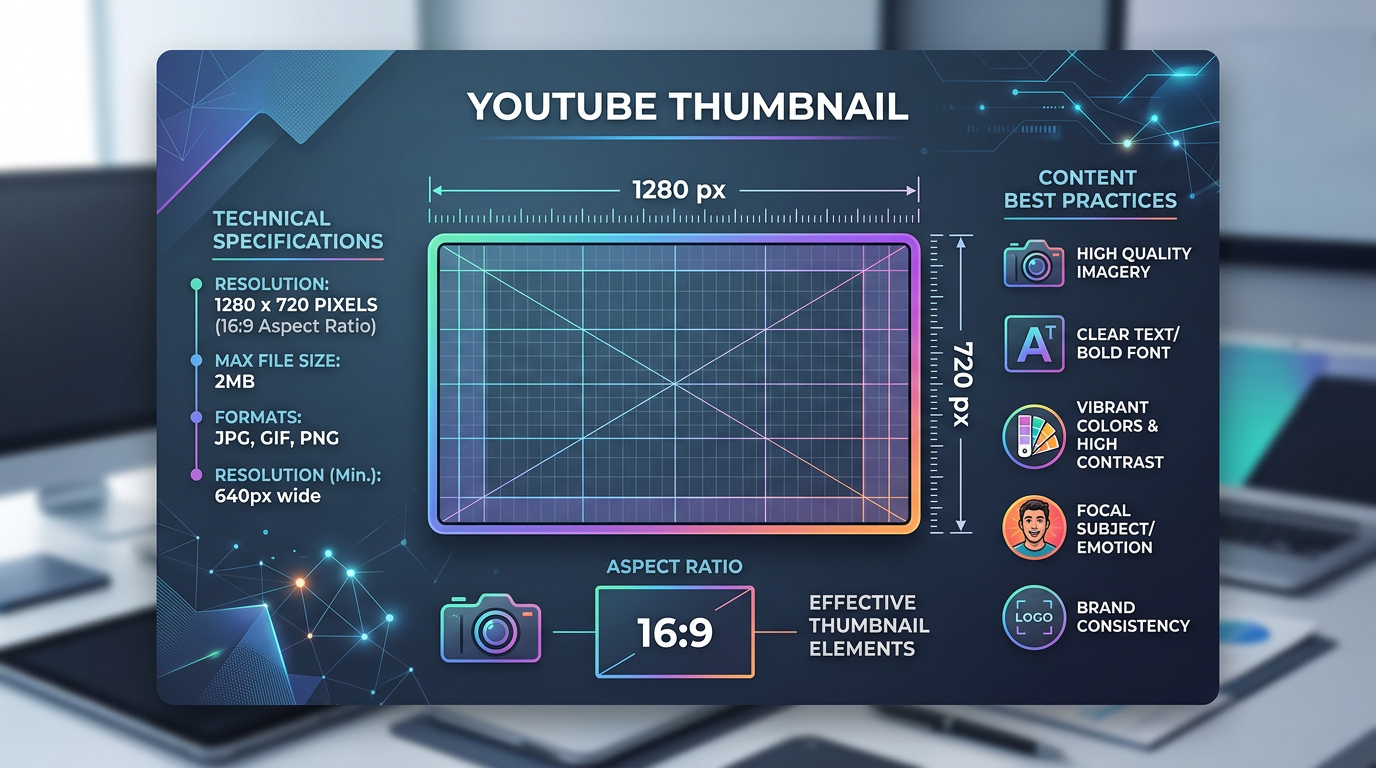
- Resolution: 1280 x 720 pixels
- Aspect Ratio: 16:9
- Minimum Width: 640 pixels
- File Size: Under 2MB
- Format: JPG, GIF, BMP, or PNG
Why 1280x720?
The 16:9 aspect ratio matches YouTube's video player. This ensures your thumbnail fills the preview space without cropping or distortion. The 1280-pixel width provides sufficient resolution for high-density displays while remaining manageable for upload.
Resolution Quality
While 1280x720 is the official recommendation, higher resolutions (1920x1080 or even 4K) can provide sharper images on high-DPI displays. However, YouTube's compression will ultimately standardize the output.
Recommendation: Design at 1280x720 for optimal balance between quality and file size. Larger resolutions increase file size without proportional quality improvements after YouTube's processing.
File Format Deep Dive
PNG vs. JPG
PNG Advantages:
- Lossless compression maintains quality
- Supports transparency
- Better for graphics with text and sharp edges
- Clearer logos and illustrations

Figure 1: Mobile vs desktop thumbnail preview comparison, showing responsive display diffe...
JPG Advantages:
- Smaller file sizes for photographic content
- Faster upload times
- Sufficient quality for most photographic images
Recommendation: Use PNG for thumbnails with significant text, graphics, or transparency. Use JPG for photography-heavy thumbnails to reduce file size.
When to Use GIF
GIF format supports animation, which can create attention-grabbing thumbnails. However:
- Only the first frame displays in many contexts
- File sizes increase dramatically with animation
- YouTube may convert animated GIFs to static images
Recommendation: Stick to static images for reliable presentation across all contexts.
Understanding Aspect Ratio
The 16:9 Standard
YouTube thumbnails must fit the 16:9 aspect ratio to display correctly. Non-conforming images may:
- Display with black bars
- Crop unpredictably
- Stretch or distort
Calculating 16:9 Dimensions
To maintain aspect ratio:
- Width ÷ 16 × 9 = Height
- Height ÷ 9 × 16 = Width
Common 16:9 Resolutions:
- 1280 × 720 (HD)
- 1920 × 1080 (Full HD)
- 2560 × 1440 (2K)
- 3840 × 2160 (4K)
Handling Non-16:9 Content
If your source material isn't 16:9:
- Add letterboxing (black bars top and bottom)
- Extend the background with matching colors
- Crop to fit, maintaining important elements
Safe Zone Considerations
Critical Content Placement
YouTube displays thumbnails differently across contexts:
- Search Results: Full thumbnail visible
- Recommendations: Full thumbnail visible
- Channel Page: Full thumbnail visible
- Mobile Feed: Cropped variations possible
The Safe Zone Principle
Place critical elements (faces, text, key images) in the central 80% of your thumbnail. Avoid placing important content near edges where cropping may occur.
Time Indicator Overlay
YouTube adds video duration badges in the lower-right corner of thumbnails. This overlay can cover important elements.
Solution: Keep the bottom-right corner clear of essential content. Reserve this area for elements that won't suffer if partially obscured.
Mobile Optimization
Mobile Display Differences
Mobile devices show thumbnails at:
- Smaller absolute sizes
- Different crops in some contexts
- Higher pixel density on modern phones
Mobile-First Design Approach
Design with mobile viewing in mind:
- Larger Text: Ensure text remains readable at small sizes
- Clearer Focus: Make primary elements prominent
- Higher Contrast: Compensate for varied viewing conditions
- Simpler Designs: Reduce complexity that becomes unclear small
Testing Mobile Appearance
Always preview thumbnails on actual mobile devices before publishing. What looks perfect on a desktop monitor may fail on phone screens.
File Size Optimization
Why File Size Matters
- Upload Speed: Large files take longer to upload
- Processing Time: YouTube processes smaller files faster
- User Experience: Thumbnails should load quickly in feeds
Compression Techniques
For PNG:
- Use PNG-8 for simple graphics
- Reduce color palette when possible
- Remove unnecessary transparency
For JPG:
- Adjust quality settings (80-90% typically sufficient)
- Optimize for web in image editors
- Balance quality against file size
Target File Sizes
- Ideal: Under 500KB
- Acceptable: 500KB - 1MB
- Maximum: Under 2MB (YouTube's limit)
Color Profile Considerations
sRGB Standard
YouTube expects sRGB color profiles. Images in other color spaces (Adobe RGB, ProPhoto RGB) may display with incorrect colors.
Color Consistency
Design in sRGB mode to ensure:
- Colors appear as intended
- Consistency across devices
- Predictable results after YouTube processing
CMYK Warning
Never upload CMYK images (designed for print). They will display incorrectly and may cause processing errors.
Resolution for Different Content Types
Photography-Heavy Thumbnails
- Recommended: 1280x720
- Format: JPG at 85-90% quality
- Focus: Image clarity and color accuracy
Text and Graphics-Heavy Thumbnails
- Recommended: 1280x720 or 1920x1080
- Format: PNG for sharpness
- Focus: Text clarity and graphic precision
Mixed Content Thumbnails
- Recommended: 1280x720
- Format: PNG for balanced quality
- Focus: Balance between photo and graphic clarity
Uploading Technical Details
Upload Methods
Via YouTube Studio:
- Standard interface, straightforward upload
- Immediate preview available
- Easy replacement if needed
Via API:
- Automated uploads possible
- Bulk operations supported
- Requires technical implementation
Upload Timing
Thumbnails may take time to process:
- Standard definition versions appear quickly
- High definition versions may take minutes
- Different display contexts update at different rates
Multiple Thumbnail Options
YouTube allows uploading multiple thumbnails:
- Up to 3 options for most channels
- A/B testing capability for eligible channels
- Easy switching between options
Quality Assurance Checklist
Before publishing any thumbnail, verify:
- Resolution is 1280x720 (or larger 16:9)
- File size is under 2MB
- Format is PNG or JPG
- Aspect ratio is exactly 16:9
- Critical elements are in safe zone
- Text is readable at mobile size
- Colors are sRGB
- Lower-right corner accommodates duration overlay
- Preview appears correct on multiple devices
Common Technical Issues
Blurry Thumbnails
Causes:
- Low-resolution source images
- Excessive compression
- Uploading images under 640px wide
Solutions:
- Use higher-resolution source material
- Reduce compression settings
- Design at recommended 1280x720
Color Shifts
Causes:
- Wrong color profile
- Compression artifacts
- Monitor calibration differences
Solutions:
- Convert to sRGB before upload
- Test on multiple devices
- Adjust compression settings
Cropped Edges
Causes:
- Non-16:9 aspect ratio
- Platform-specific display variations
Solutions:
- Maintain exact 16:9 ratio
- Keep important elements centered
- Test across display contexts
Advanced Specifications
High Dynamic Range (HDR)
HDR thumbnails require:
- HDR video content
- HDR-compatible display contexts
- Special encoding considerations
Note: Most channels should stick to SDR for maximum compatibility.
360° and VR Content
360° thumbnails require:
- Equirectangular projection
- 2:1 aspect ratio
- Special viewer considerations
Live Stream Thumbnails
Live stream thumbnails follow the same specifications but may:
- Include "LIVE" badges
- Update dynamically
- Display differently in live sections
Conclusion: Technical Excellence as Foundation
Understanding and implementing correct thumbnail specifications ensures your creative efforts translate into professional results. Technical mistakes undermine even the best designs. Master these fundamentals, and your thumbnails will display perfectly across all contexts.
Create a quality assurance workflow that verifies all specifications before publishing. This systematic approach prevents technical issues from diminishing your thumbnail effectiveness.
Remember: A technically perfect thumbnail provides the canvas for your creative vision. Get the basics right, then focus on design that captures attention and drives clicks.
jackyi
YouTube content strategist and thumbnail optimization expert. Passionate about helping creators grow their channels through data-driven design and SEO best practices.